install.packages("renv")

renv::restore(lockfile = "https://raw.githubusercontent.com/sib-swiss/seq-spatial-transcriptomics-training/refs/heads/main/renv.lock")Setup
Login and set up
Choose one of the following:
- Enrolled: if you are enrolled in a course with a teacher
- Own installation: if you want to install packages on your own local Rstudio installation
- Docker: if you want to use the docker image locally
Log in to Rstudio server with the provided link, username and password.
Install the required packages using renv
With docker, you can use exactly the same environment as we use in the enrolled course, but than running locally.
In the video below there’s a short tutorial on how to set up a docker container for this course. Note that you will need administrator rights, and that if you are using Windows, you need the latest version of Windows 10.
The command to run the environment required for this course looks like this (in a terminal):
Modify the script
The home directory within the container is mounted to your current directory ($PWD), if you want to change this behaviour, modify the path after -v to the working directory on your computer before running it.
docker run \
--rm \
-p 8787:8787 \
-e PASSWORD=test \
-v $PWD:/home/rstudio \
sibswiss/training-seq-spatial-transcriptomics-rstudio
If this command has run successfully, approach Rstudio server like this:
http://localhost:8787Copy this URL into your browser. If you used the snippet above, the credentials will be:
-
Username:
rstudio -
Password:
test
Great! Now you will be able to use Rstudio with all required installations.
About the options
The option -v mounts a local directory in your computer to the directory /home/rstudio in the docker container (‘rstudio’ is the default user for Rstudio containers). In that way, you have files available both in the container and on your computer. Use this directory on your computer. Change the first path to a path on your computer that you want to use as a working directory.
The part sibswiss/training-seq-spatial-transcriptomics-rstudio is the image we are going to load into the container. The image contains all the information about software and dependencies needed for this course. When you run this command for the first time it will download the image. Once it’s on your computer, it will start immediately.
Create a project
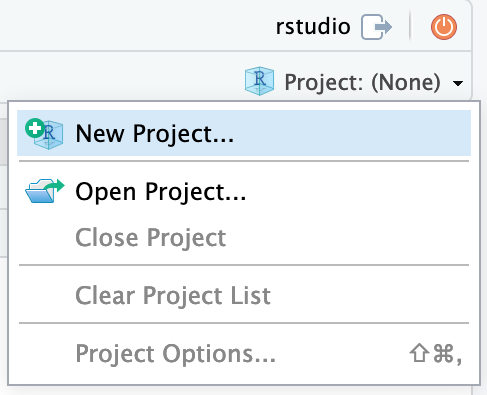
Now that you have access to an environment with the required installations, we will set up a project in a new directory. On the top right choose the button Project (None) and select New Project…
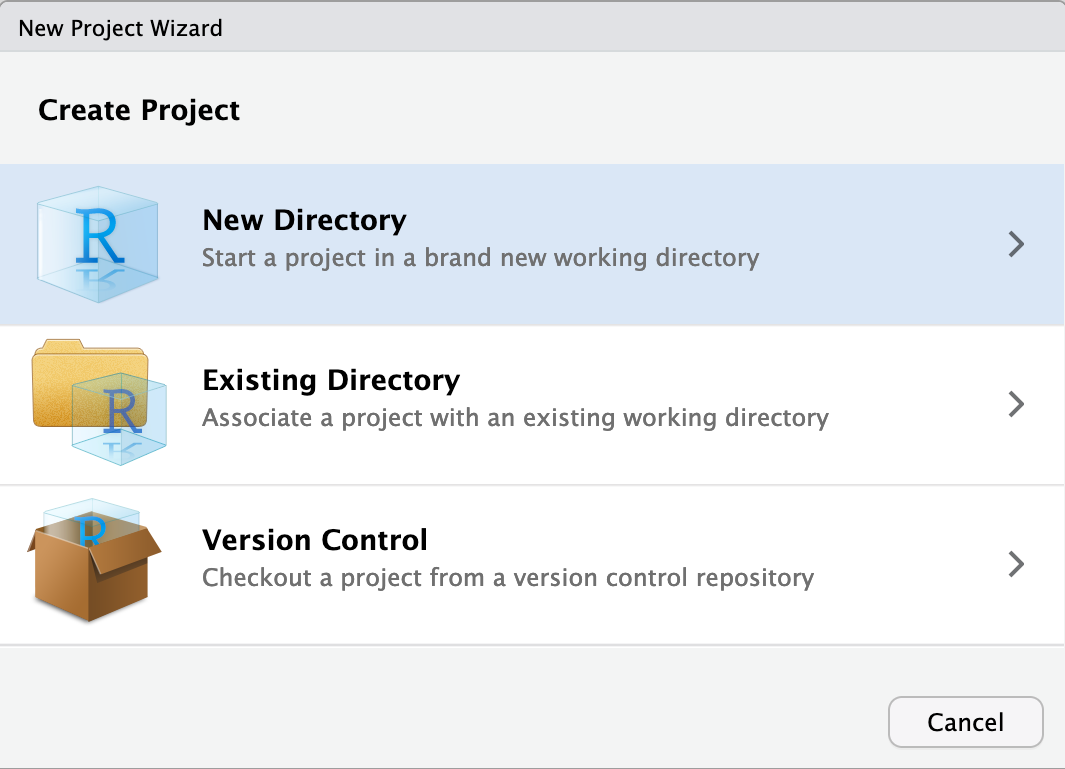
Continue by choosing New Directory
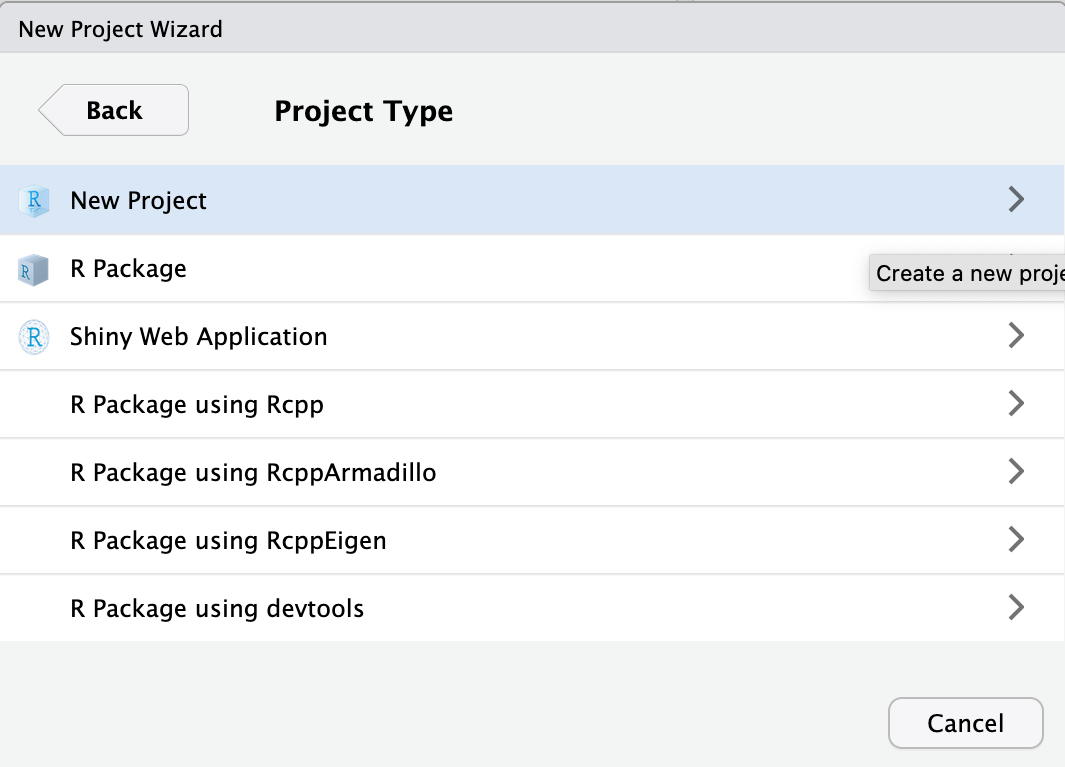
As project type select New Project
Finally, type in the project name. This should be spatial_course. Finish by clicking Create Project.
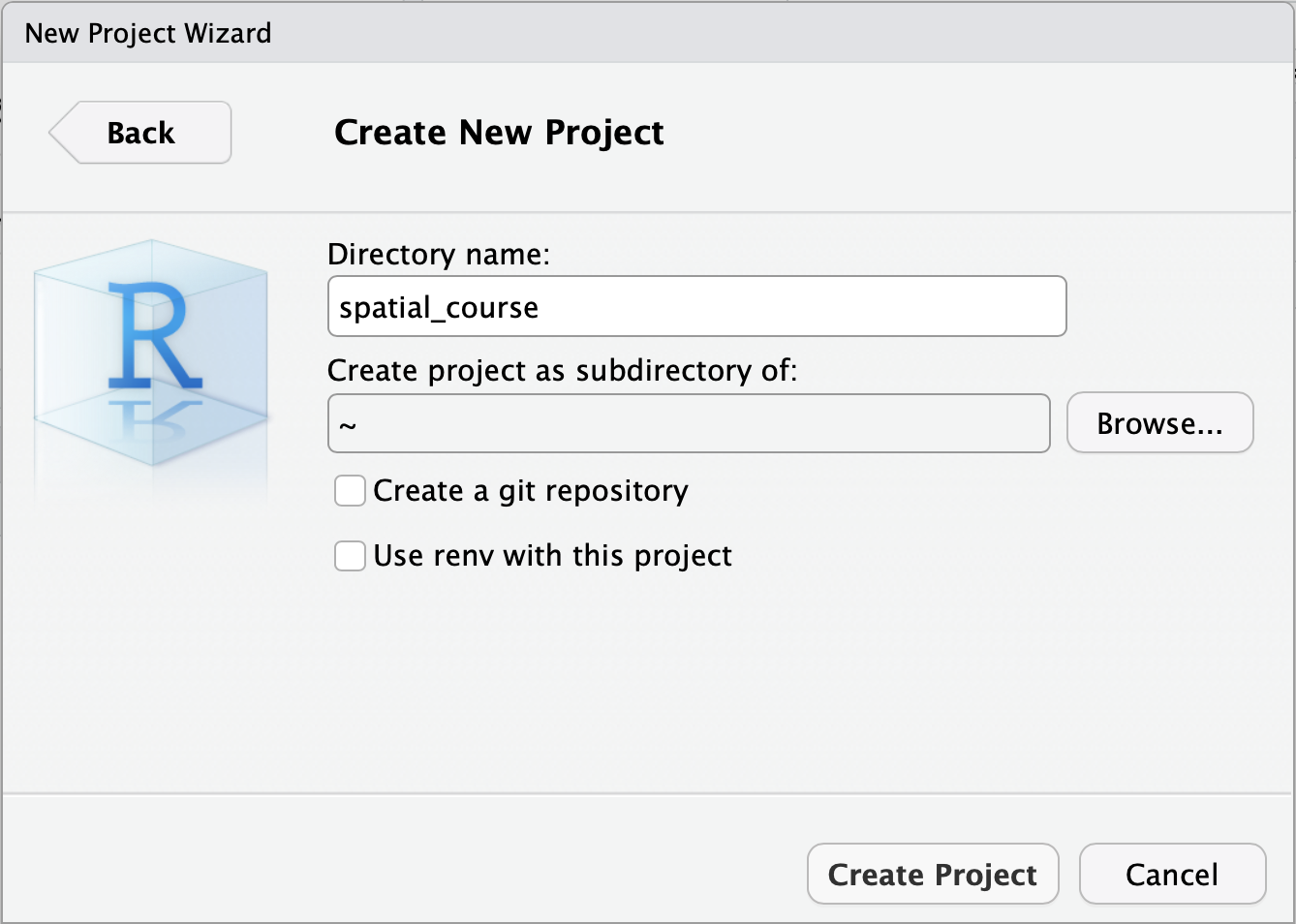
We have setup a project and a project directory (it is in /home/rstudio/spatial_course).